- Introduction to WhatsApp Broadcast Lists :
- What is a WhatsApp Broadcast List?
- WhatsApp Broadcast List Limit :
- How to Create a WhatsApp Broadcast List ?
- Creating a WhatsApp Broadcast List Using Labels :
- How to Edit and Delete a WhatsApp Broadcast List ?
- Difference Between Broadcast List, Group, and Channel :
- Broadcast List in WhatsApp Business: Extra Features
- Creating a WhatsApp Marketing and Maximize Reach Broadcast List via Botbuz :
Introduction to WhatsApp Broadcast Lists :
In the past, businesses used to shout their message at everyone at once, like a loud TV commercial or a flyer in the mail that most people just ignored. Today, things have changed because customers want to talk with a business, not just be talked at. This is where WhatsApp comes in, since almost everyone already uses it to chat with friends, it has become the most popular way for companies to reach people. The big challenge for a business is how to talk to hundreds of people personally without spending all day typing individual messages.
WhatsApp Broadcast Lists solve this perfectly; they allow a business to send one message that lands in everyone’s private inbox as a personal chat. It’s like a teacher sending a private note to every student in class at the exact same time, it stays private, feels personal and ensures everyone actually reads the important news.
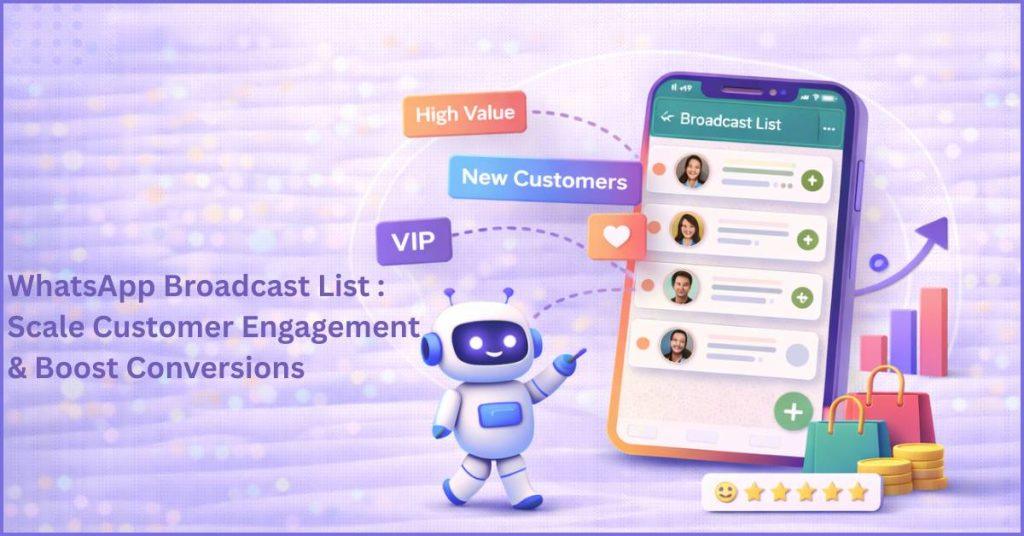
What is a WhatsApp Broadcast List?
A WhatsApp Broadcast List is like a “private megaphone” for sending messages. Instead of sending the same text over and over to fifty different people, a person can create a single list, type the message once, and hit send. The magic happens behind the scenes: even though it was sent to a group, it doesn’t create a messy group chat where everyone is talking over each other.
Instead, the message lands in each person’s private inbox, looking just like a regular, one-on-one text from a friend. As long as the receiver has the sender’s number saved, they get the message privately, and if they text back, it stays a secret conversation between just the two of them. This makes it a super fast and organized way to share news with lots of people without losing that personal touch.
WhatsApp Broadcast List Limit :
Using a WhatsApp Broadcast List is a game changer because it allows someone to speak directly to their audience in a place they actually check their private messages. Unlike an email that might get lost in a spam folder or a social media post that nobody sees, these messages have incredibly high open rates because they pop up just like a text from a friend.
It is the perfect tool for sending out quick sale alerts, important updates, or event reminders to a large group all at once. The best part is that it avoids the chaos of a giant group chat; nobody gets annoyed by endless notifications from strangers, and every customer feels special because the message looks like it was written just for them.
How to Create a WhatsApp Broadcast List ?
Setting up a WhatsApp Broadcast List is like creating a secret shortcut that lets you talk to many people at once without them knowing they are part of a crowd. It’s a great way to save time because you only have to write your message once to send it to everyone individually.
How to do it on Android ?
To get started on an Android phone, you simply open your WhatsApp and look for the three tiny dots in the top corner. When you tap them, you’ll see an option that says “New broadcast.” From there, you just scroll through your friends and tap the ones you want to add. Once you hit the green checkmark, your list is ready! If you ever want to add more people later, you just tap the name of the list at the top and pick “Edit recipients.”
How to do it on an iPhone ?
On an iPhone, the buttons are in a slightly different place. Instead of looking for dots, you’ll see a link that says “Broadcast Lists” right at the very top of your chat screen. Once you tap that, you hit “New List” at the bottom and select the people you want to message. After you tap “Create,” the list is saved in its own special folder at the top of your chats so it stays organized and easy to find.
What about using a computer?
If you like using WhatsApp Web on a computer to type faster, there is one big thing to remember: the computer isn’t the “boss” of the account. While you can send messages to a list you’ve already made, you cannot create a new list or add new people to one while using the web version. You have to set the list up on your phone first. Once it’s created on your mobile, it will pop up on your computer screen so you can start typing.
The Secret Rule
The most important thing to know is that this only works if the other person has your number saved in their phone. If they haven’t saved you as a contact, your broadcast message will never show up in their inbox. This is WhatsApp’s way of making sure people don’t get messages from strangers!
Creating a WhatsApp Broadcast List Using Labels :
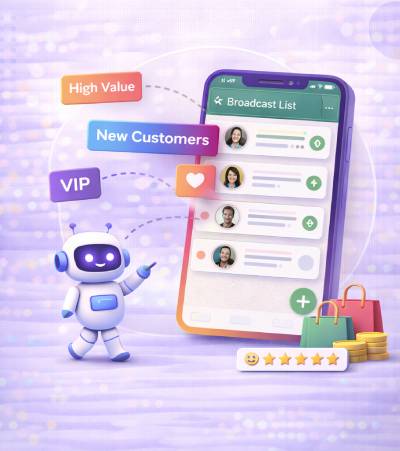
In the business version of WhatsApp, Labels work like colorful digital sticky notes that help you sort your customers into different groups. Instead of just having a giant list of names, a person can tag their chats with colors and titles, such as “New Orders” or “Friends from School,” so they stay organized.
To send a message to a specific group, the user just clicks on the label they want, and WhatsApp instantly gathers everyone with 그 color into a temporary broadcast list. This makes it incredibly easy to send the right news to the right people in seconds, rather than searching through hundreds of contacts to find them one by one. It’s like having a filing cabinet that can automatically send a letter to everyone in a specific folder with just one click!
How to Edit and Delete a WhatsApp Broadcast List ?
Managing your Broadcast Lists is just as easy as creating them. As your business or social circle changes, you can update your lists to make sure the right people are always included.
Editing a Broadcast List :
If you want to change who is on your list or give the list a new name, you can do so in just a few taps.
Adding or Removing Contacts :
Open the List: Tap on the Broadcast List you want to change.
Go to Info: Tap the List Name or the “i” icon at the very top of the screen.
Edit Participants :
On Android, tap Edit recipients. You can then uncheck people to remove them or search for new people to add.
On iPhone, tap Edit List. Tap the “X” on a person’s picture to remove them or search for new names to add.
Save: Hit the checkmark or Done.
Updating List Names :
Giving your list a specific name (like “Sunday Soccer Team” or “VIP Clients”) helps you stay organized.
In the List Info screen, tap the three dots (Android) or the name itself (iPhone) to type in a new title.
Deleting a Broadcast List :
When you no longer need a specific list, you can remove it entirely to keep your chat screen clean.
Steps to Delete:
Find the List: Go to your main chat screen.
Trigger Delete:
On Android, long-press the list and tap the Trash icon.
On iPhone, swipe left on the list name and tap Delete.
Confirm: WhatsApp will ask if you’re sure. Tap Delete again.
What Happens After Deletion?
The List Vanishes: The “shortcut” group you made will disappear from your phone.
Messages Stay: Any messages you already sent to those people will not be deleted. They will still stay in your 1-on-1 private chats with each person.
No Notification: Don’t worry—the people on the list won’t get a notification saying you deleted the list. Since they never knew they were on a list in the first place, they won’t notice a thing!
Difference Between Broadcast List, Group, and Channel :
|
Feature
|
WhatsApp Group
|
WhatsApp Broadcast
|
WhatsApp Channel
|
|---|---|---|---|
|
Who can talk?
|
Everyone (unless restricted)
|
Only the sender
|
Only the admin
|
|
Who sees whom?
|
Everyone sees all members
|
Privacy (recipients don't see others)
|
Followers are hidden from others
|
|
How does it arrives?
|
In a group chat window
|
As a private 1-on-1 message
|
In the "Updates" tab
|
|
Feedback?
|
Direct public replies
|
Private 1-on-1 replies
|
Emoji reactions only
|
Broadcast List in WhatsApp Business: Extra Features
Think of the WhatsApp Business App as a regular bike with a basket added—it’s still a bike, but now it has extra tools like “Labels” (color-coded stickers) and “Quick Replies” (pre-written notes) to help a small business owner carry more work. But if that business grows into a giant factory, they need the WhatsApp Business API, which is like a massive delivery truck.
The API lets a company send messages to thousands of people at once and connects to their big office computers so a whole team of people can help answer questions. It’s the difference between a small lemonade stand using a phone and a giant company using a professional communication system to talk to the whole world.
Creating a WhatsApp Marketing and Maximize Reach Broadcast List via Botbuz :
Using a professional tool like Botbuz is like giving a business owner a “super-powered” version of WhatsApp that can talk to thousands of people at once. Instead of just having a messy list of names, the user organizes their contacts into special categories—like sorting a collection of cards into different decks—so they only send messages to the people who are actually interested.
The system is smart enough to put each person’s real name into the message automatically, making a mass announcement feel like a private, friendly chat. Because it uses the official business technology, it can send messages to huge crowds and include helpful buttons that customers can tap to buy things or ask questions instantly. It’s the ultimate way to stay organized and reach a massive audience without losing that personal touch.
Conclusion :
Ultimately, a WhatsApp Broadcast List is your direct line to your customer’s pocket. When you combine that reach with the power of Botbuz Chatbot automation, you aren’t just sending messages, you are building a scalable, conversational engine that grows your business while you sleep. Whether you’re a local shop in Rajkot or a global brand, the goal remains the same: Stay personal, stay instant, and stay ahead.