- Understanding WhatsApp API errors :
- What Are WhatsApp API Errors?
- Common Categories of WhatsApp API Errors :
- Most Common WhatsApp API Error Codes Explained :
- Why WhatsApp API Errors Occur ?
- How to Correct WhatsApp API Errors ?
- All WhatsApp Error Codes (Quick Reference Table) :
- Botbuz – Your Path to Fewer WhatsApp API Errors :
Understanding WhatsApp API errors :
The WhatsApp Business API is a technical bridge that connects Meta’s messaging platform to a company’s existing software, enabling large-scale automation and professional customer support. Because this system relies on a complex digital handshake, monitoring API errors is essential; failing to do so can lead to undelivered messages, wasted costs, and a poor customer experience. Businesses often face challenges like strict 24-hour reply windows, template rejection, and messaging limits, making it vital to understand these technical signals to ensure reliable communication & maintain a high quality rating.
What Are WhatsApp API Errors?
A WhatsApp API error is essentially a digital “rejection slip” sent back to your business when a message or request fails. Instead of a simple “failed” status, the system provides a specific code and message that explains exactly what went wrong during the technical communication between your software and Meta’s servers.
These errors usually pop up during key actions, such as when you try to send a broadcast, register a new phone number, or submit a message template for approval. They occur the moment the system detects a violation of a rule—like trying to message someone who hasn’t opted in or sending a file that is too large.
To fix these issues, you have to distinguish between Client-Side and Server-Side errors :
Client-Side Errors (The “You” side): These happen because something is wrong with the request you sent. It might be a typo in the phone number, an expired security token, or a message that breaks WhatsApp’s formatting rules. You have to fix the data on your end to resolve these.
Server-Side Errors (The “Meta” side): These are less common and happen when WhatsApp’s own systems are glitching or down for maintenance. In these cases, your data is perfect, but the “bridge” is temporarily broken. The only solution here is usually to wait and try again later.
Common Categories of WhatsApp API Errors :
To troubleshoot effectively, it helps to group the dozens of possible WhatsApp API errors into six logical categories. Each category points to a different part of your setup that might need attention.
- Authentication & Authorization Errors :
These errors occur when the “handshake” between your system and Meta fails.
Error 190 (Invalid OAuth Token): Your access token has expired or been revoked.
Error 200–299 (Permission Denied): Your app hasn’t been granted the necessary permissions (like whatsapp_business_messaging) to perform the action.
Fix: Generate a new Permanent Access Token and verify permissions in the Meta App Dashboard.
- Template Message Errors :
These are specific to business-initiated messages that require pre-approval.
Error 132000 (Param Mismatch): You sent the wrong number of variables (e.g., the template expects 3 variables, but you only sent 2).
Error 132001 (Template Not Found): The template name or language code in your code doesn’t match the approved version in your dashboard.
Error 132015 (Template Paused): Meta has temporarily disabled the template due to low quality or high user reports.
- Messaging & Delivery Errors :
These occur during the actual transmission of a message to a user.
Error 131030 (Message Failed): A generic failure, often because the recipient’s number isn’t on WhatsApp.
Error 131047 (24-Hour Window): You tried to send a free-form message to a user who hasn’t replied in over 24 hours. You must use a Template instead.
Error 131026 (Message Undeliverable): The user may have blocked you, or they are using an outdated version of WhatsApp.
- Media Upload & Format Errors :
Problems related to sending images, videos, or documents.
Error 131052 (Media Download Error): WhatsApp couldn’t download the file from the URL you provided (often due to a slow server or broken link).
Error 131053 (Media Upload Error): The file format is unsupported (e.g., trying to send a .TIFF instead of .JPG) or exceeds size limits.
- Account & Compliance Errors :
Issues related to your business standing and billing.
Error 131042 (Payment Issue): Your credit card is expired, or you’ve exceeded your credit limit. Outgoing messages are blocked until resolved.
Error 131031 (Account Locked): Your account is restricted for violating Meta’s Commerce or Messaging policies.
- Rate Limiting & Quality Rating Issues :
Errors triggered when you move too fast or users complain.
Error 130429 (Rate Limit Hit): You are sending too many messages per second (the default is often 80 MPS).
Error 131048 (Spam/Quality Limit): Your Quality Rating (Green/Yellow/Red) has dropped too low because users are marking your messages as “Spam.”
Most Common WhatsApp API Error Codes Explained :
When your software communicates with the WhatsApp Business API, it doesn’t just “fail”—it sends back a specific error code. Understanding these common codes is the fastest way to get your messaging back on track.
- Error 100 : Invalid Parameter
This is a “catch-all” error for formatting mistakes. It means the data you sent doesn’t match what the API expected.
Common Causes: A typo in the phone number, a message body exceeding the 1024-character limit, or a missing required field (like the “To” number).
The Fix: Double-check your API request structure and ensure all fields are correctly named and formatted according to Meta’s documentation.
- Error 131026 : Message Undeliverable
This is a delivery-level failure. Your request was technically perfect, but the message couldn’t reach the user’s phone.
Common Causes: The recipient has blocked your business, they are using an extremely outdated version of WhatsApp, or they haven’t accepted WhatsApp’s latest Terms of Service.
The Fix: You cannot force these messages through. If it’s a critical update, try reaching the customer via SMS or email.
- Error 131047 : Outside 24-Hour Window
WhatsApp restricts businesses from sending “free-form” (regular) messages unless the customer has replied within the last 24 hours.
Common Causes: Trying to reply to a customer too late or sending a manual follow-up days after the initial chat.
The Fix: You must use an approved Message Template (e.g., a “shipping update” or “appointment reminder”) to re-open the conversation window.
- Error 132000 : Template Parameter Mismatch
This occurs when the variables in your code don’t match the variables in your approved template.
Common Causes: Your template has three placeholders {{1}}, {{2}}, {{3}}, but your API call only provided values for two of them.
The Fix: Count the placeholders in your WhatsApp Manager and ensure your code sends the exact same number of parameters in the correct order.
- Error 133010 : Phone Number Not Registered
The API is trying to send a message from a number it doesn’t recognize as a registered Business API number.
Common Causes: The phone number was never fully registered, or it was recently migrated from the standard WhatsApp app but the registration process hasn’t finished.
The Fix: Ensure the number is verified in your Meta Business Suite and perform the “Register” API call if you are setting it up for the first time.
- Error 470 : Too Many Requests (Rate Limit)
You are sending messages faster than your current “Messaging Tier” or throughput limit allows.
Common Causes: Blasting a massive marketing campaign all at once or sending dozens of messages to the same user in a few seconds.
The Fix: Implement a “queue” in your system to space out messages. Check your WhatsApp Manager to see if you can upgrade to a higher messaging tier (e.g., from 1,000 to 10,000 conversations per day).
Why WhatsApp API Errors Occur ?
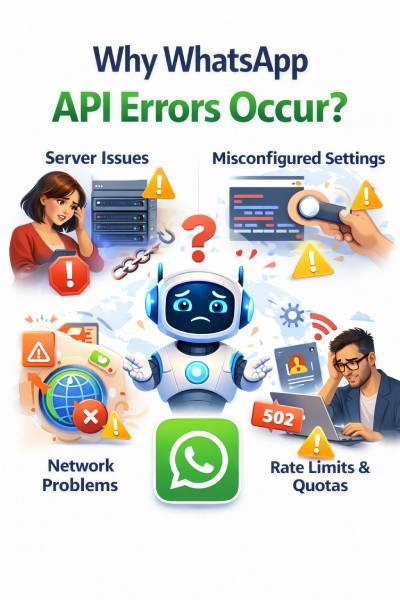
WhatsApp API errors happen when the technical rules set by Meta are broken, usually due to incorrect configurations like expired security tokens or misaligned message templates where variables don’t match. Beyond technical glitches, errors are often triggered by policy violations—such as messaging customers without their permission or sending prohibited content—which can lead to a drop in your “Quality Rating” and cause Meta to throttle your message volume.
Finally, issues can stem from simple capacity limits (sending too many messages too fast) or temporary server outages on Meta’s end, all of which require proactive monitoring to keep your customer communication flowing smoothly.
How to Correct WhatsApp API Errors ?
Correcting WhatsApp API errors requires a systematic approach to move from a generic “failure” to a precise solution. Because the API is a backend service, you won’t see pop-up alerts; instead, you must rely on technical signals and logs.
- Reading and Understanding Error Responses
Every time an API request fails, Meta sends back a JSON response body. This is your primary diagnostic tool.
Look for the code and subcode: The main code (e.g., 400) tells you the general problem, but the error_subcode or fbtrace_id provides the specific reason.
Analyze the message field: WhatsApp usually includes a human-readable string like “Template not found” or “Parameter mismatch.”
Check the HTTP Status: * 4xx: You sent something wrong (e.g., 401 Unauthorized, 429 Too Many Requests).
5xx: WhatsApp is having trouble (e.g., 500 Internal Server Error).
- Using Logs and Dashboards
To solve issues that happen in bulk or over time, use the visual tools provided by Meta and your integration partners.
Meta Events Manager: In your Business Suite, you can find “Event Logs” that track message delivery, read receipts, and common webhook failures.
WhatsApp Manager: This dashboard is essential for monitoring your Quality Rating (Green, Yellow, or Red) and checking if specific Message Templates have been paused or rejected.
Access Token Debugger: If you see authentication errors (Code 190), paste your token into Meta’s Access Token Debugger to see if it has expired or is missing permissions.
- Identifying Root Causes Quickly
When a message fails, follow this rapid-fire checklist to isolate the cause:
Is it the Recipient? Check if the phone number is valid and on WhatsApp. If it is, they may have blocked you (Error 131026).
Is it the 24-Hour Window? If you’re sending a “Session Message” (free-form text), check if the customer messaged you in the last 24 hours. If not, you must use a Template (Error 131047).
Is it the Template? Compare your code’s variable count {{1}}, {{2}} against the approved template in the dashboard. One missing comma can break the send (Error 132000).
Is it Global? Check the Meta Status Page to see if the entire WhatsApp API is experiencing a downtime or maintenance window.
All WhatsApp Error Codes (Quick Reference Table) :
|
Error Code
|
Meaning
|
Primary Cause
|
Recommended Action
|
|---|---|---|---|
|
100
|
Invalid Parameter
|
Typo in the JSON body, incorrect phone format, or missing field.
|
Cross-check your API request against the official documentation.
|
|
190
|
Access Token Error
|
The security token has expired, been revoked, or is incorrect.
|
Generate a new Permanent Access Token in the Meta Developer Console.
|
|
470
|
Rate Limit Reached
|
Sending messages faster than your Tier or throughput allows.
|
Slow down your sending frequency or implement a message queue.
|
|
131026
|
Message Undeliverable
|
The recipient has blocked the business or isn't on WhatsApp.
|
Try reaching the customer via another channel (SMS/Email).
|
|
131030
|
Message Failed
|
Generic failure; often a problem with the recipient's number.
|
Verify the phone number exists and is in the correct international format.
|
|
131042
|
Payment Required
|
Outstanding balance or expired credit card in Meta Business Suite.
|
Update your payment method in Business Settings > Payments.
|
|
131047
|
Outside 24-Hour Window
|
Trying to send a free-form message after the session has expired.
|
Send an Approved Message Template to re-engage the customer.
|
|
131048
|
Spam/Quality Throttle
|
Your account's Quality Rating is too low (Red status).
|
Stop promotional blasts; improve message relevance to reduce blocks.
|
|
131052
|
Media Download Error
|
WhatsApp cannot reach the URL where your image/file is hosted.
|
Ensure your media URL is public and the server response is fast.
|
|
132000
|
Template Mismatch
|
The number of variables {{x}} in code doesn't match the approved template.
|
Verify the template structure in WhatsApp Manager and update your code.
|
|
132001
|
Template Not Found
|
Incorrect template name or language code (e.g., using en vs en_US).
|
Check the exact name and locale in your Message Template dashboard.
|
|
133010
|
Number Not Registered
|
The sender phone number is not yet registered on the API.
|
Complete the registration/onboarding process for that specific number.
|

Botbuz – Your Path to Fewer WhatsApp API Errors :
Botbuz acts as an intelligent shield between your business and the complex technical requirements of the WhatsApp API, automatically solving the issues that typically lead to message failures. It prevents rate-limiting errors by spacing out messages and uses smart retry logic to deliver chats that might otherwise fail due to temporary glitches.
By monitoring your account health in real-time and validating message templates before they are sent, Botbuz ensures you stay compliant with Meta’s policies and avoid the technical mismatches that cause downtime. Ultimately, businesses choose Botbuz to turn a complicated API into a reliable, “set-and-forget” communication channel that maximizes message delivery while minimizing manual troubleshooting.